
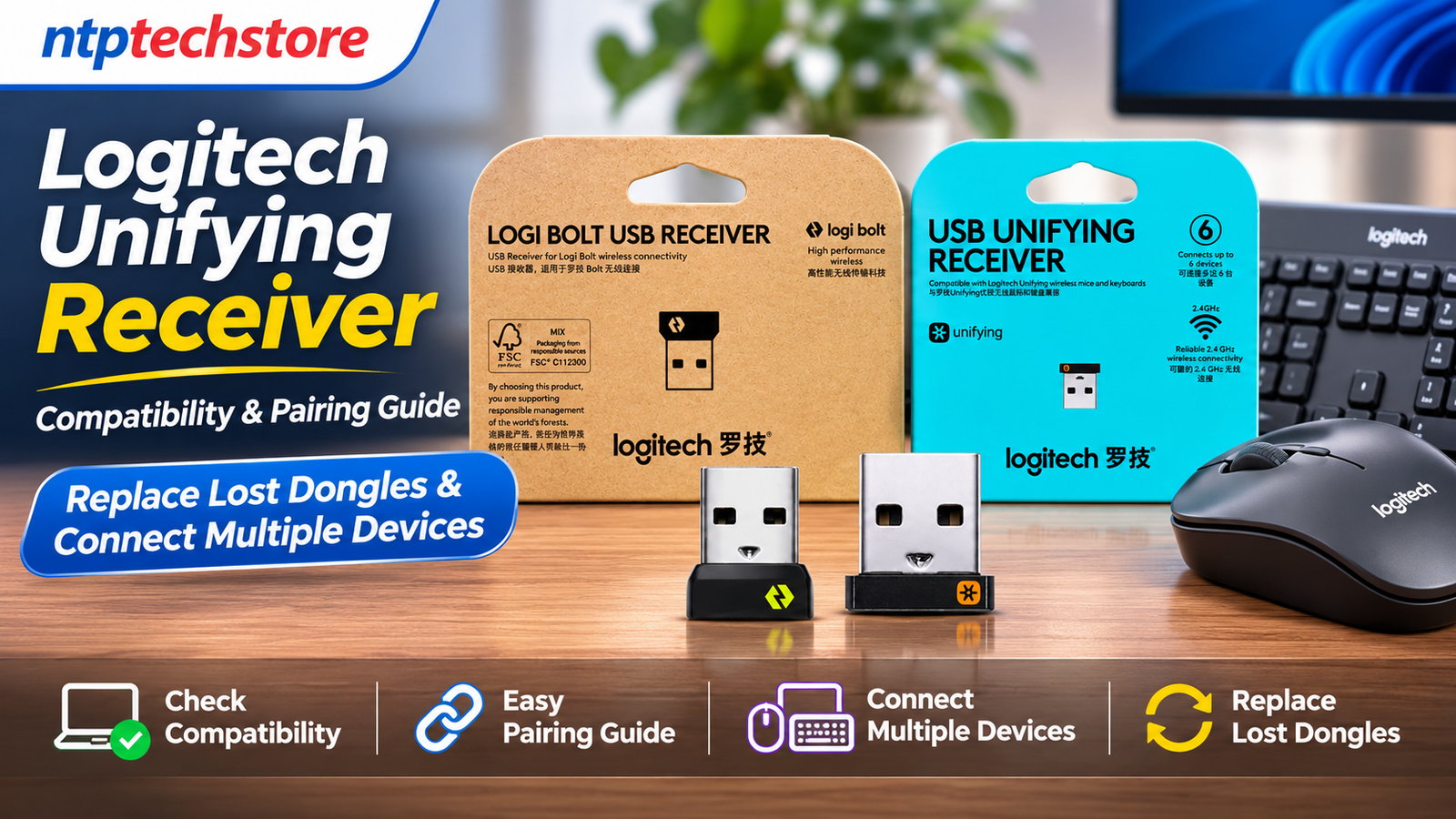
Few things derail a productive workday faster than misplacing a tiny wireless USB dongle. Whether you packed your laptop in a hurry, dropped the receiver into a bag seam, or purchased a standalone wireless peripheral like the Logitech K850 Bluetooth keyboard that arrived without a bundled receiver, you are left wondering: Can I replace just the USB receiver, or is my wireless keyboard and mouse now useless?
Fortunately, Logitech solved this dilemma with its proprietary Unifying technology. Instead of locking each wireless keyboard or mouse to a single, factory-paired dongle, Logitech Unifying receivers allow you to link up to six compatible wireless devices to a single nano USB receiver. This setup saves valuable USB ports on modern laptops and eliminates desktop cable clutter.
However, compatibility is not universal across all Logitech models. If you have ever wondered whether your device supports the Unifying protocol, how to pair a replacement dongle using official software, or how Unifying differs from Logitech’s newer Logi Bolt technology, this complete setup and compatibility guide breaks down everything you need to know.
What Is the Logitech Unifying Receiver?
The Logitech Unifying Receiver is an ultra-compact 2.4 GHz USB Type-A wireless receiver (standard model part number 993-000596, often stamped with model code M/N: C-U0007). Engineered for convenience, it provides encrypted, low-latency wireless communication up to 10 metres (approximately 33 feet) away.
What makes the Unifying receiver distinct from ordinary 2.4 GHz wireless dongles is its multi-device pairing architecture. Rather than requiring one USB port for your mouse and a second USB port for your keyboard, a single Unifying receiver manages bidirectional communication for up to six compatible Logitech accessories simultaneously.
How to Check If Your Logitech Device Is Unifying Compatible
Before ordering a replacement receiver or attempting to link an existing keyboard or mouse, you must confirm that your peripheral supports the Unifying protocol. Logitech manufactures devices with three distinct wireless protocols, and they cannot be mixed interchangeably:
- The Unifying Logo: Inspect the underside of your mouse or keyboard, or look inside the battery compartment. Compatible devices feature the distinctive orange six-pointed star or flower icon stamped on the casing. If you see this orange star, your device is 100% Unifying-compatible.
- Standard Non-Unifying 2.4 GHz Peripherals: Budget wireless models (such as certain basic bundled combos or standard office mice like the Logitech B170) use pre-paired, dedicated 2.4 GHz nano receivers. These units do not display the orange star and cannot connect to a Unifying receiver.
- Logitech Bolt Peripherals: Logitech’s enterprise-grade secure wireless standard features a bright neon green/yellow hexagon containing a lightning bolt. Bolt devices use an entirely separate protocol and are not backwards-compatible with Unifying dongles.
Logitech Unifying vs. Logi Bolt vs. Standard Nano Receiver
A frequent point of confusion among shoppers and remote workers is distinguishing between Logitech’s wireless connection standards. The table below outlines key differences to help you identify what your peripheral requires:
| Feature / Specification | Logitech Unifying Receiver | Logi Bolt Receiver | Standard 2.4GHz Nano Receiver |
|---|---|---|---|
| Visual Identifier | Orange 6-pointed star / flower icon | Neon yellow/green bolt in a hexagon | Plain black plastic casing or generic text |
| Common Model Codes | M/N: C-U0007 (Part # 993-000596) | Logi Bolt USB Receiver | Model-specific nano dongles |
| Maximum Paired Devices | Up to 6 compatible peripherals | Up to 6 compatible Bolt peripherals | 1 pre-paired device only |
| Wireless Frequency | Advanced 2.4 GHz (Logitech proprietary) | Bluetooth Low Energy / Secure RF 2.4 GHz | Fixed-channel 2.4 GHz |
| Operating Range | Up to 10 metres (approx. 33 ft) | Up to 10 metres (approx. 33 ft) | Up to 10 metres |
| Cross-Compatibility | Works only with orange-star Unifying gear | Works only with Bolt-supported gear | Cannot pair third-party or Unifying gear |
If you use newer premium workplace gear such as the Logitech MX Master 3S wireless mouse, it relies on the Logitech Bolt USB receiver rather than Unifying. Always check the emblem on your device chassis before buying a replacement.
Step-by-Step Guide: How to Pair Devices to a Logitech Unifying Receiver
If you have purchased a genuine replacement Logitech Unifying Receiver 993-000596 or want to link a second peripheral, follow this simple step-by-step setup walkthrough:
Step 1: Insert the Unifying USB Receiver
Insert the Unifying nano receiver directly into an available USB Type-A port on your desktop or laptop computer. For optimal signal integrity, avoid plugging the receiver into unpowered USB hubs or crowded rear ports directly adjacent to high-speed USB 3.0 thumb drives.
Step 2: Download the Official Logitech Software
To initiate the digital handshake between the receiver and your keyboard or mouse, download official configuration software from Logitech’s support portal. You have two primary options:
- Logitech Unifying Software: The dedicated, lightweight standalone utility designed specifically for pairing and unpairing Unifying hardware on Windows and macOS.
- Logi Options+ or Logitech Connection Utility: Modern multi-device configurations often support direct pairing through the Logi Options+ suite, while legacy machines can utilise the portable Logitech Connection Utility.
Step 3: Launch the Software and Follow the Wizard
Open the Logitech Unifying Software and click Next on the welcome screen. The wizard will notify you that it is scanning for active hardware.
Step 4: Power Cycle Your Peripheral
Locate the physical power switch on your wireless mouse or keyboard (commonly found on the base plate or upper edge). Turn the power switch OFF, wait three seconds, and toggle it back to ON. The software instantly detects the broadcast signal from the device and links it to the receiver’s memory.
Step 5: Verify and Finish
Move your mouse cursor or type into the test field inside the application window. Once you confirm responsiveness, click Yes and select Finish. Your peripheral is now permanently paired to that receiver, even if you move the receiver to an entirely different computer or operating system.
Connecting Multiple Devices: Build a Clutter-Free Dual Setup
One of the primary productivity benefits of the Unifying receiver is running high-performance multi-device setups without consuming multiple USB slots. For example, you can pair a high-end productivity mouse like the Logitech M720 Triathlon Bluetooth mouse alongside a multi-device desktop keyboard onto a single dongle.
To connect subsequent accessories (up to six in total):
- Keep your first paired device powered on and working.
- Open the Logitech Unifying Software and click the Advanced button at the bottom left.
- Click Pair a New Device.
- Turn your second peripheral off and then back on.
- Once recognized, both devices will communicate smoothly over the same tiny nano dongle.
Lost Your Logitech USB Receiver? Here Are Your Options
If you lost your original USB receiver, don’t throw your mouse or keyboard away. Here is what you should do based on your equipment:
- Verify the Device Has the Orange Star: If your equipment has the orange Unifying mark, you do not need to hunt for the exact serial-numbered dongle that came in the retail box. A genuine Logitech Unifying Receiver (Model C-U0007 / 993-000596) will seamlessly pair with it via software in under two minutes.
- Avoid Generic Third-Party “Universal” Dongles: Third-party clones sold online frequently lack Logitech’s proprietary firmware and encryption protocols. In most cases, third-party dongles cannot communicate with Logitech hardware or be recognized by official Logitech pairing utilities.
- Check for Dual-Connectivity (Bluetooth Support): Premium Logitech keyboards and mice often feature multi-mode connectivity with Easy-Switch capabilities. If your device supports both Bluetooth and Unifying (such as the K850 or M720 Triathlon), you can pair directly to your PC via Bluetooth while awaiting your replacement USB dongle.
Explore our complete catalog of certified peripherals and connectivity essentials across our Computer Accessories & Networking section and browse top solutions from trusted manufacturers on our brands page.
Troubleshooting Common Logitech Unifying Pairing Problems
If the Logitech Unifying Software fails to detect your keyboard or mouse during setup, walk through these practical troubleshooting checks:
- Fresh Batteries: Low battery voltage is the single most common cause of pairing failure. Insert a fresh alkaline battery and verify the LED power indicator lights up.
- USB Port Proximity & Interference: USB 3.0 ports and active external hard drives emit electromagnetic radiation in the 2.4 GHz spectrum that can create wireless interference. Move the receiver to a USB 2.0 port or use a short USB extension cable to position the receiver closer to your workspace.
- Device Stored in Receiver Memory: If you are re-pairing a previously connected peripheral, open the Advanced settings in the Logitech Unifying Software, locate the inactive device profile, click Unpair, and perform the pairing cycle again.
- Operating System Permissions: On modern macOS versions, ensure that Logitech Unifying Software and Logi Options+ have been granted Input Monitoring and Accessibility permissions under System Settings.
Frequently Asked Questions (FAQ)
Can I use any wireless USB receiver with my Logitech mouse?
No. Standard wireless mice operate on fixed, pre-programmed radio frequencies matched to their original factory dongles. Only Logitech peripherals marked with the orange Unifying star icon can connect to a Logitech Unifying Receiver. Generic or competing brand dongles are incompatible.
How many devices can connect to one Logitech Unifying Receiver?
A single Logitech Unifying Receiver can simultaneously connect up to six compatible Logitech wireless mice, keyboards, trackballs, and numeric keypads.
Can a Logitech Unifying receiver connect to a Logitech Bolt mouse?
No. Logitech Unifying and Logi Bolt are separate, incompatible wireless platforms. Unifying uses Logitech’s proprietary 2.4 GHz protocol, while Bolt utilizes Bluetooth Low Energy security protocols. A Unifying receiver will not detect a Bolt mouse, nor will a Bolt receiver connect to an older Unifying device.
What should I do if I lost my mouse USB dongle and have no Bluetooth?
First, check the base of your mouse for the orange Unifying logo. If present, purchase a genuine replacement Logitech Unifying Receiver (model 993-000596 / C-U0007). Once plugged into your computer, download the free Logitech Unifying Software to pair your mouse in seconds.
Do I need to run the Logitech Unifying Software every time I turn on my PC?
No. The pairing profile is saved directly in the internal non-volatile memory of the Unifying USB receiver. Once the initial pairing is completed, the receiver functions on a plug-and-play basis across any compatible computer, laptop, or operating system without needing background software.
Summary: Restore Your Workspace with the Right Connection
Losing a wireless dongle does not mean replacing your entire desk setup. Thanks to Logitech’s Unifying ecosystem, a single genuine USB receiver can restore your mouse, reconnect your keyboard, and save valuable ports on your laptop. Verify the orange Unifying emblem, run the free pairing wizard, and get your workstation back to peak productivity effortlessly.